
How to Install eSIM on iPhone
Follow these steps to activate your eSIM on your iPhone (iOS 12.1 or later)
Before You Begin
- Make sure your iPhone is unlocked and eSIM compatible (iPhone XS or later)
- Ensure you have an active Wi-Fi connection
- Update to the latest iOS version for the best experience
- Have your eSIM QR code ready (from email or eSIM Outlet account)
Method 1: Quick Install for iOS (Recommended)
Use the Quick Install for iOS in "My eSIMs"el, or "Your eSIMs are ready" email for a simple one-tap installation:
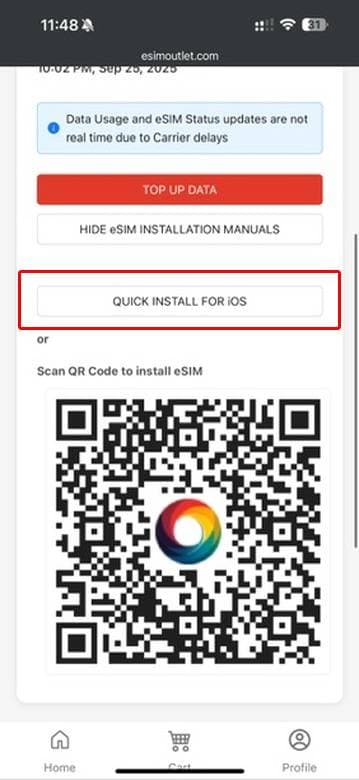
1Open the Quick Install for iOS Link
Open esimoutlet.com > Profile > My eSIMs > SHOW eSIM INSTALLATION MANUALS, tap on the Apple eSIM quick install link.
2Tap "Allow" When Prompted
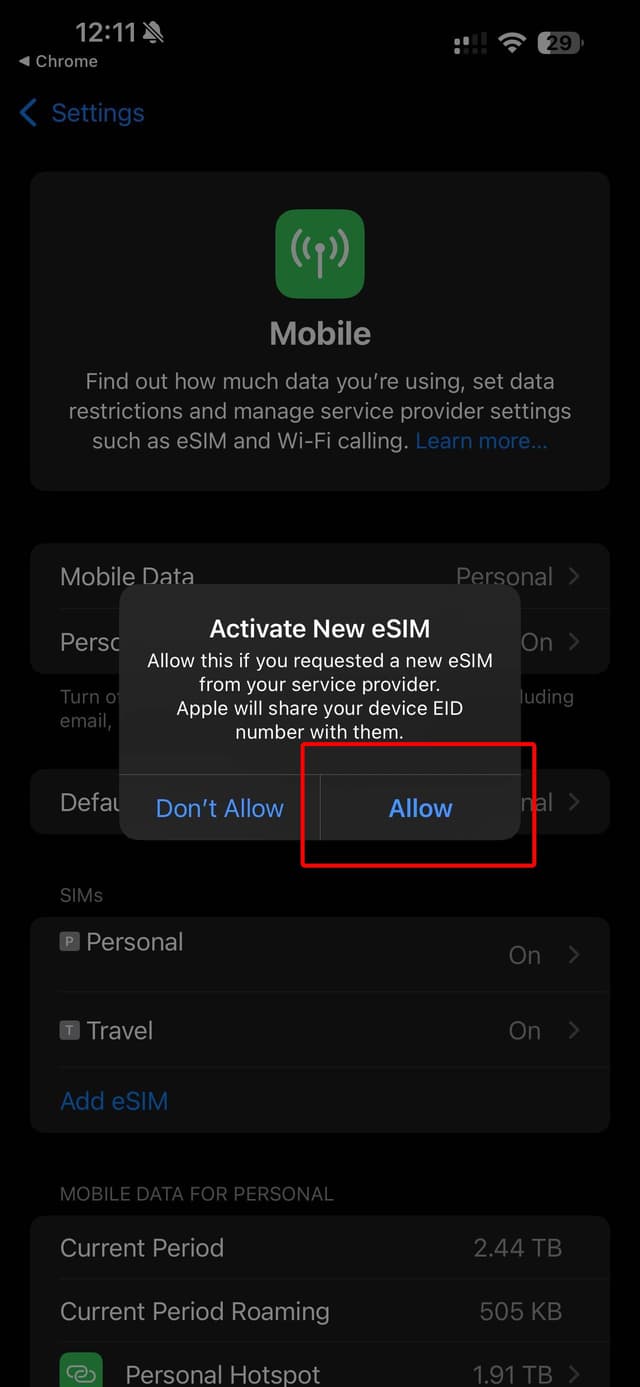
Your iPhone will recognize the eSIM activation link and display a prompt. Tap "Allow" to proceed.
3Confirm eSIM
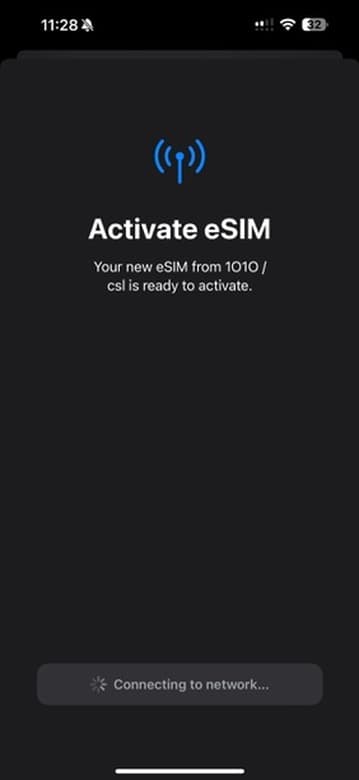
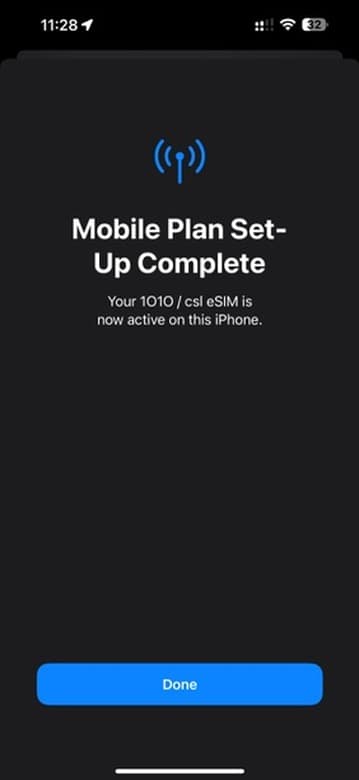
Confirm the eSIM details that appear on your screen.
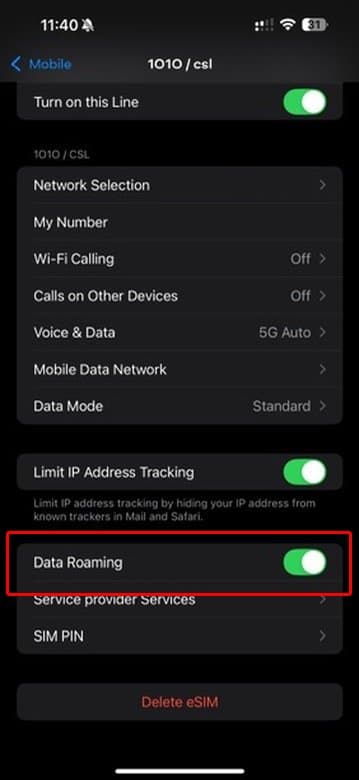
4Enable Data Roaming
Go back to Cellular/Mobile settings, tap on your new eSIM plan, and ensure Data Roaming is turned ON.
Method 2: QR Code Installation
1Open Settings
On your iPhone, go to the Settings app.
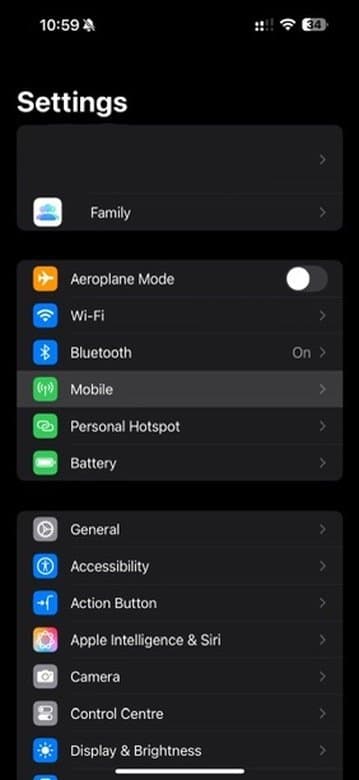
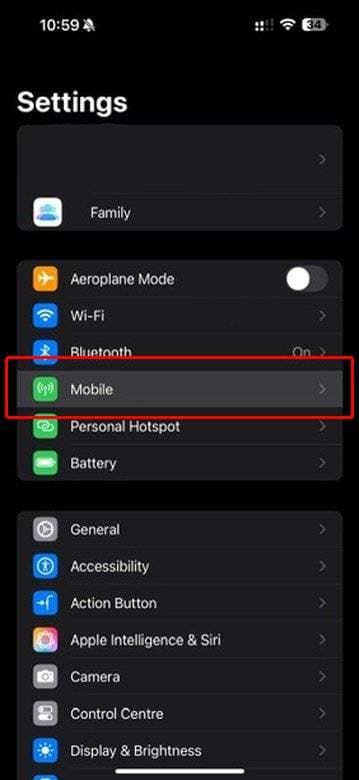
2Tap on Cellular/Mobile Data
In Settings, scroll down and tap on Cellular (US) or Mobile Data (UK/EU).
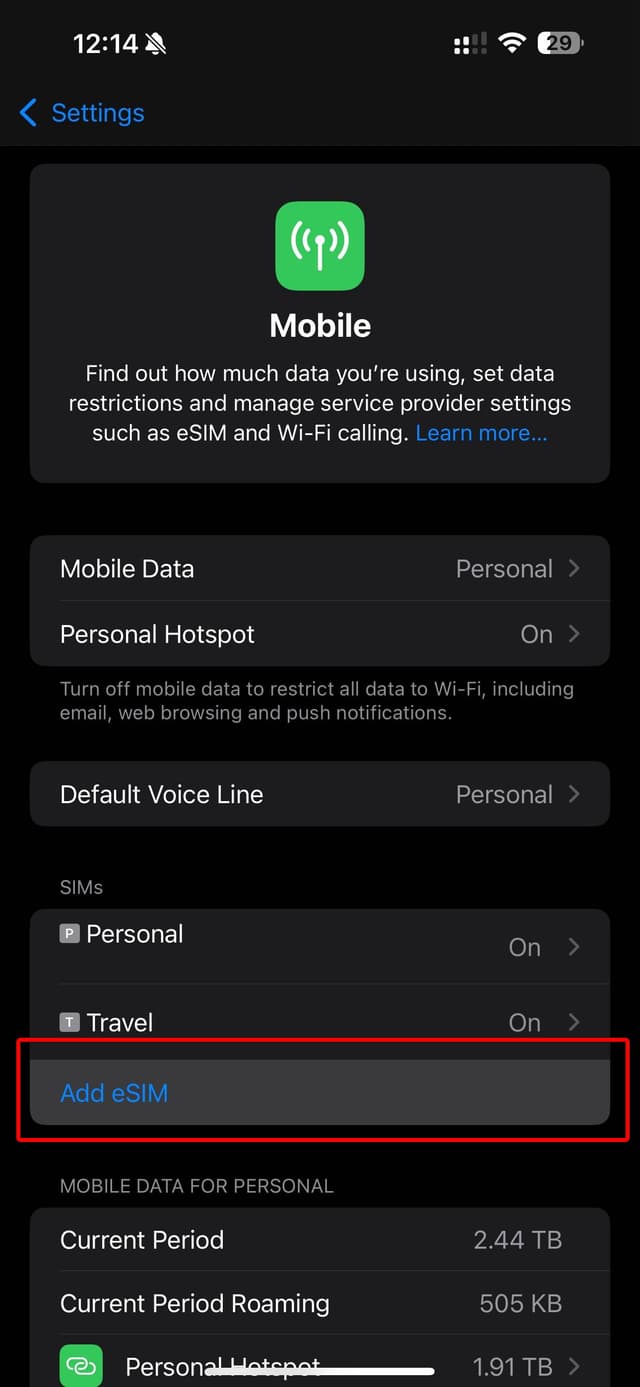
3Add eSIM
Tap on "Add Cellular Plan / Add Mobile Data Plan / Add eSIM". The setting name is region dependent.
4Scan QR Code
Use your iPhone camera to scan the QR code sent to your email from eSIM Outlet.
Tip: If you're viewing the QR code on another device, make sure the QR code is properly displayed and well-lit. If you're viewing it on a computer, increase the brightness of your screen.
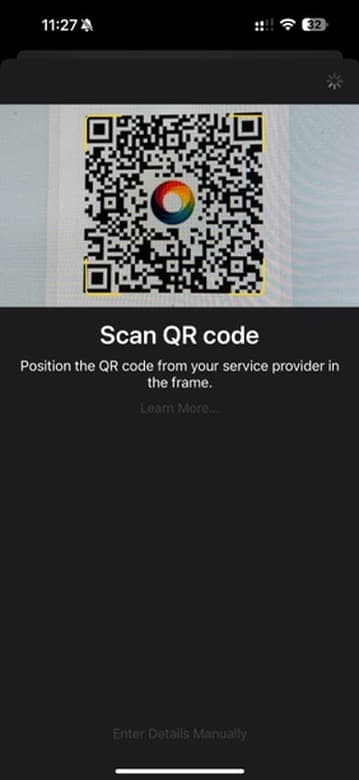
5Confirm eSIM
Confirm the eSIM details that appear on your screen.
6Enable Data Roaming
Go back to Cellular/Mobile settings, tap on your new eSIM plan, and ensure Data Roaming is turned ON.
Troubleshooting for iPhone
QR Code Won't Scan
- Ensure adequate lighting
- Try displaying QR code on a larger screen
- Try the manual installation method
- Make sure the camera lens is clean
eSIM Not Connecting
- Toggle Airplane Mode on and off
- Restart your iPhone
- Check if eSIM is properly activated
- Verify data roaming is enabled
Invalid SIM Error
- Ensure your iPhone is unlocked
- Verify eSIM was properly activated by eSIM Outlet
- Reset Network Settings (Settings > General > Reset)
Carrier Settings Update
- If prompted for a carrier settings update, always accept it
- These updates optimize network performance
Need Further Assistance?
Our support team is available 24/7 to help you with any installation issues.
Contact Support