
AUD
How to Install eSIM on Google Pixel Devices
Follow these steps to activate your eSIM on your Google Pixel device
Before You Begin
- Make sure your Pixel device is unlocked and eSIM compatible (Pixel 3a or later)
- Ensure you have an active Wi-Fi connection
- Update to the latest Android version for the best experience
- Have your eSIM QR code ready (from email or eSIM Outlet account)
QR Code Installation
1
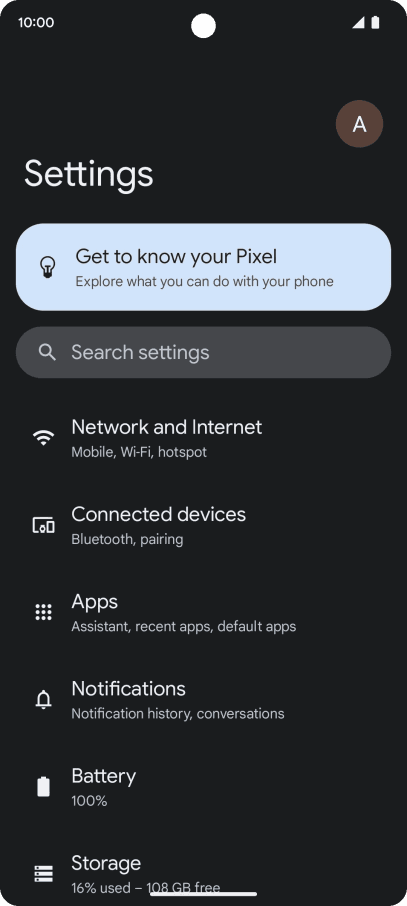
1Open Settings
On your Pixel device, open the Settings app.
2
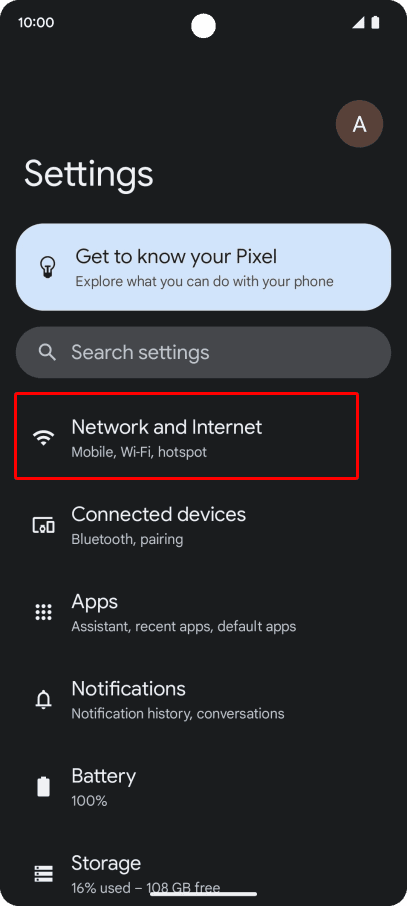
2Go to Network & Internet
Tap on "Network & internet".
3
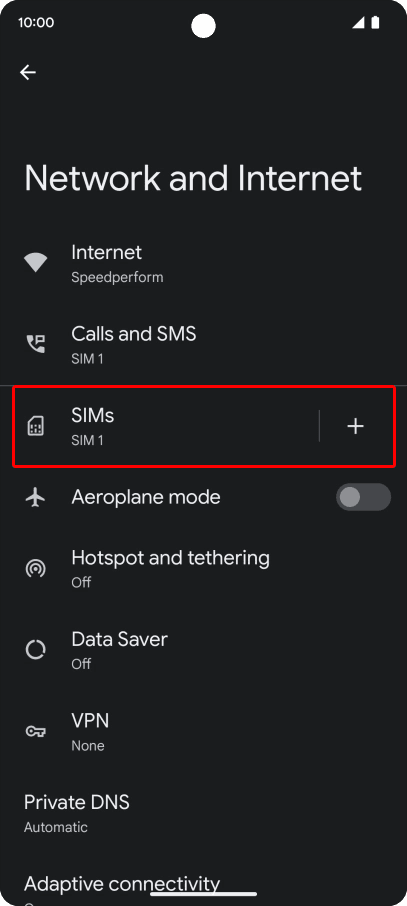
3SIMs
Tap on "SIMs" or "Mobile network".
4
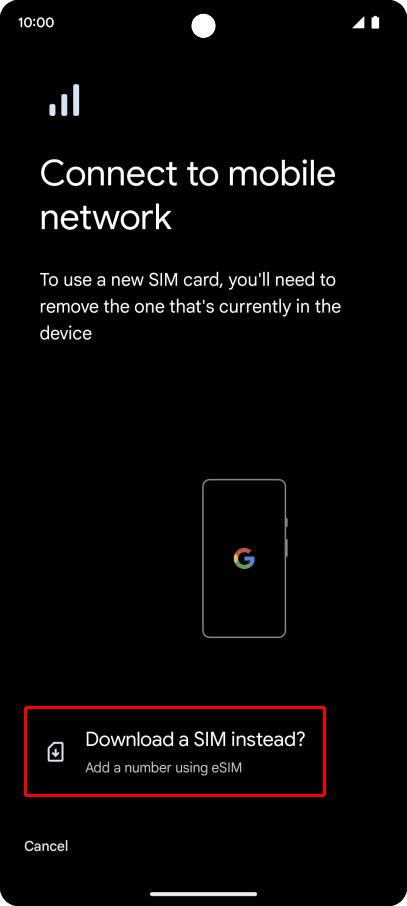
4Add Carrier
Tap on "Download a SIM" or "+ Add carrier".
5
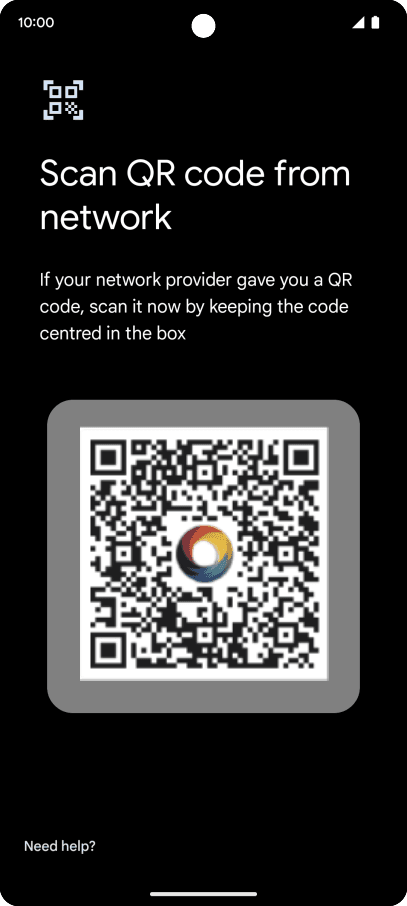
5Scan QR Code
Tap "Use QR code" and scan the QR code that was sent to your email from eSIM Outlet.
Tip: Make sure the QR code is displayed at full size and in a well-lit environment.
6
6Confirm and Activate
Follow the instructions on the screen to confirm the details and tap "Activate".
7
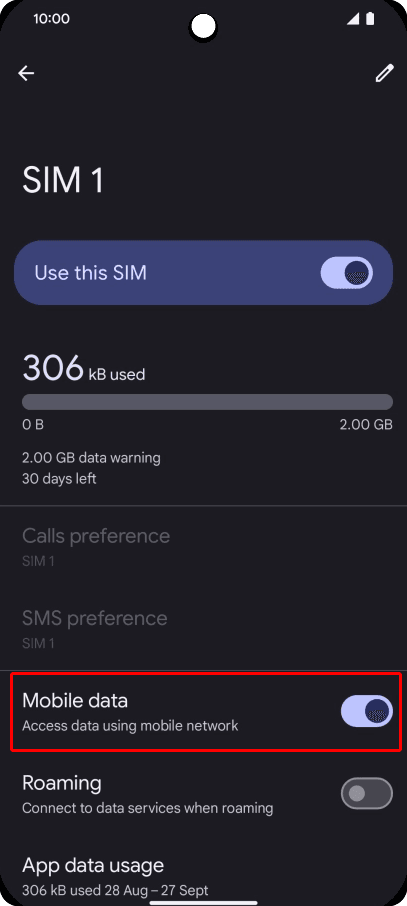
7Enable Data Roaming
Go back to the mobile network settings for your new eSIM and toggle on "Roaming".
Troubleshooting for Google Pixel
QR Code Won't Scan
- Ensure your screen brightness is high
- Try displaying QR code on a larger screen
- Make sure your camera is focused on the code
- Clean your camera lens
eSIM Not Connecting
- Toggle Airplane Mode on and off
- Restart your device
- Verify data roaming is enabled
Network Not Available
- Ensure you have proper signal coverage
- Try manually selecting the network operator
- Reset network settings if needed
Need Further Assistance?
Our support team is available 24/7 to help you with any installation issues.
Contact Support